

If you are wondering how to give developer access to Shopify without handing over your password, use Shopify collaborator access for an external developer or agency. It gives them their own controlled access while you decide which parts of the store they can use.
The setup is quick, but the permission choices matter. Give only what the developer needs to complete the agreed work.
Key Takeaways
- Use a Shopify collaborator account for an external Shopify Partner instead of sharing your owner login or two-step authentication codes.
- Approve only the permissions required for the project, especially around orders, customers, finance, apps, and store settings.
- Remove collaborator access when the work is complete, even though Shopify automatically expires collaborator access after 90 days without a login.
Should You Use Collaborator Access or a Staff Account?
For most outside developers, collaborator access is the better fit. Shopify designed collaborator accounts for Partners, freelancers, and agencies working on merchant stores. The developer signs in through their own Shopify Partner account, and their access does not count toward your store’s user limit. Shopify also requires collaborators to use two-step authentication.
Staff access is for users you add directly and is subject to Shopify plan limits. Shopify staff permissions make more sense when someone is effectively part of your operating team or needs a capability collaborator access cannot provide. Collaborators are exempt from staff user limits.
If the decision is between an independent specialist and a larger team, the Shopify freelancer vs agency comparison covers the trade-offs.
How to Give Developer Access to Shopify: Step-by-Step
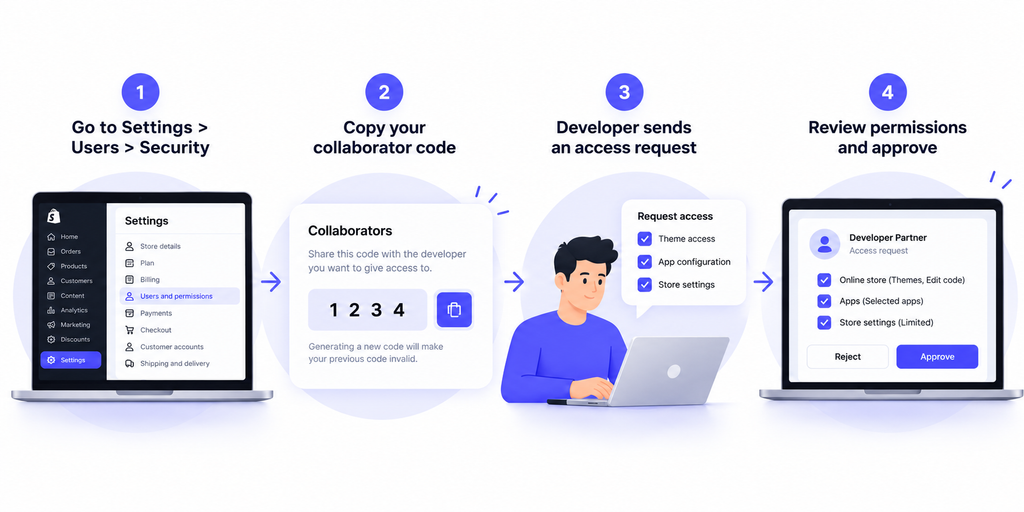
Shopify’s current workflow uses a four-digit collaborator request code. You share the code with the developer, they request the permissions they need, and you approve or reject the request from your admin.
Step 1: Confirm the Developer Is Using a Shopify Partner Account
A collaborator account is for a Shopify Partner. Ask the developer or agency to confirm they will send a collaborator request rather than asking for your store-owner username, password, recovery codes, or two-step authentication code.
Shopify tells Partners to use collaborator access for client stores and prohibits them from asking merchants for passwords or using merchant credentials.
Before access is requested, agree on the scope. Theme edits, app configuration, checkout work, and custom integrations can require different permissions.
Step 2: Find Your Shopify Collaborator Code
In Shopify admin, go to Settings > Users > Security. Depending on your setup, Shopify may also show Users & permissions in the user-management flow. In the Collaborators section, copy the four-digit Shopify collaborator code, also called a Shopify collaborator access code.
Share that code only with the developer or agency you expect to work with. If you think the code has been shared too widely, generate a new one. Shopify states that generating a new code invalidates the previous code.
The code does not give anyone immediate access. It only allows the Partner to send a request that you must still review and approve.
Step 3: Ask the Developer to Request Only the Permissions They Need
If your developer asks how to request Shopify collaborator access, they do it from their Shopify Partner environment. Their request includes the permissions they want for your store.
Do not tell them to select everything by default. Ask them to map each requested permission to a deliverable in the project scope.
For example, a theme developer may need Online store permissions such as Themes and Edit code. Shopify notes that the Themes permission can also provide access to Shopify CLI, while Edit code controls direct modification through the code editor. Files permissions can matter when the work includes uploading assets.
A developer configuring an existing app may need access to that specific app or sales channel. Shopify lets you restrict a role to selected apps and channels instead of allowing broad app management.
Step 4: Review the Request Before You Accept It
When the request arrives, go to Settings > Users and filter by Requests. Open it and review the assigned role. Shopify can create an auto-generated role from the requested permissions, which you can edit before accepting.
Check that the Partner name is the one you expected. Shopify may also show information such as how long the Partner account has existed, active collaborations, signup country, and the country from which the request was sent. Treat those details as context, not proof of identity. If something looks unexpected, verify it with your developer before approving access.
Step 5: Accept the Request and Start Work in a Safe Workflow
Once the permissions match the scope, accept the request. For development work, avoid treating the live theme as the only working copy.
For theme work, duplicate the current theme before major edits, test changes away from the live theme, and agree on who can publish. Shopify’s Themes permission can allow a user to change and publish draft themes, so access should match your delivery workflow.
Which Shopify Collaborator Access Permissions Should You Give?
The safest rule is simple: grant the minimum access required to complete the job. Shopify’s permission model is granular enough to separate themes, products, customers, finance, apps, checkout, and store settings.
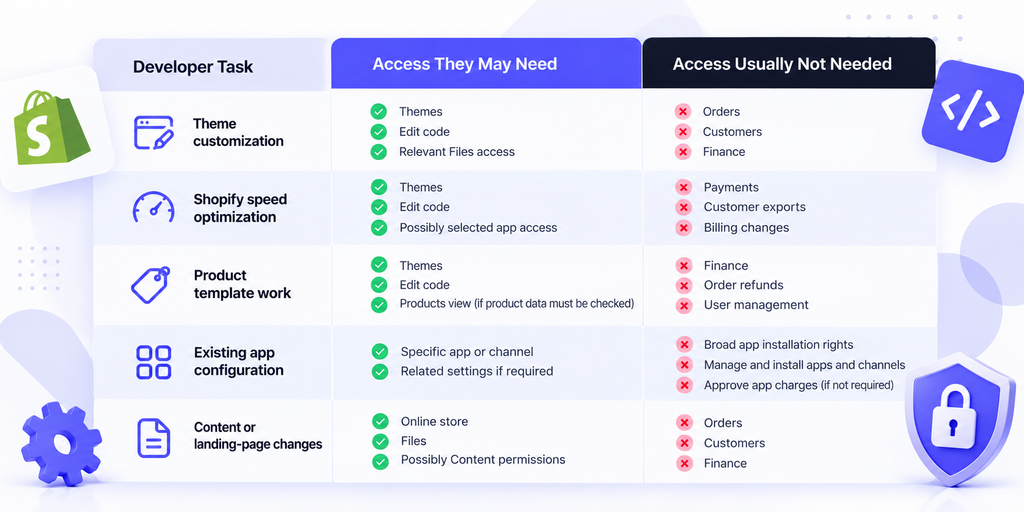
Use this as a starting point, then let the exact project determine the final role.
| Developer task | Access they may need | Access usually not needed |
| Theme customization | Online store: Themes, Edit code, relevant Files access | Orders, Customers, Finance |
| Shopify speed optimization | Themes, Edit code, possibly selected app access | Payments, customer exports, billing changes |
| Product template work | Themes, Edit code, Products view if product data must be checked | Finance, order refunds, user management |
| Existing app configuration | Specific app or channel, related settings if required | Broad app installation rights, finance access |
| Content or landing-page changes | Online store, Files, possibly Content permissions | Orders, Customers, Finance |
If a developer asks for broad access, ask which deliverable requires each permission before approving it.
Permissions You Should Be Careful With
Customer, finance, payment, billing, and broad app-management permissions deserve extra scrutiny. A theme developer normally does not need the ability to refund orders, export customer profiles, view payouts, change payment settings, or approve paid app charges.
App access also deserves a closer look. Shopify lets you give access to specific apps and sales channels. If the developer only needs one app, that is usually more controlled than granting Manage and install apps and channels, which can allow adding, accessing, or deleting apps and channels.
If new costs are possible, keep Approve app charges restricted unless the developer has a clear reason to use it. Shopify treats that as a separate permission for apps or themes that can create paid charges.
Special Case: Custom Shopify App Development
Custom app work needs extra planning. Shopify now manages new custom apps through the Dev Dashboard, and its current documentation says collaborators cannot access that dashboard because they lack organization-level permissions. A new custom app may therefore require a staff or organization-level app-development setup.
This is also the point where ownership matters. Decide who owns the app, who controls deployment, what happens to API credentials, and how the app will be maintained after the engagement ends. If you are evaluating this type of project, our guide to choosing a custom Shopify app developer explains when custom development is justified.
Security Rules to Follow Before and During Development
First, never share your store-owner password. A collaborator should use their own account. Do not send your two-step authentication code, recovery codes, email password, or payment credentials either.
Keep your own Shopify account protected with strong authentication. Shopify requires two-step authentication for collaborators and recommends reviewing users, permissions, activity, apps, and custom apps as part of store security hygiene.
Verify unexpected requests through a communication channel you already trust. Also document the access scope in the project brief so permissions can be tied to specific deliverables.
How to Remove Developer Access When the Project Ends
Offboarding should be part of the project, not an afterthought.
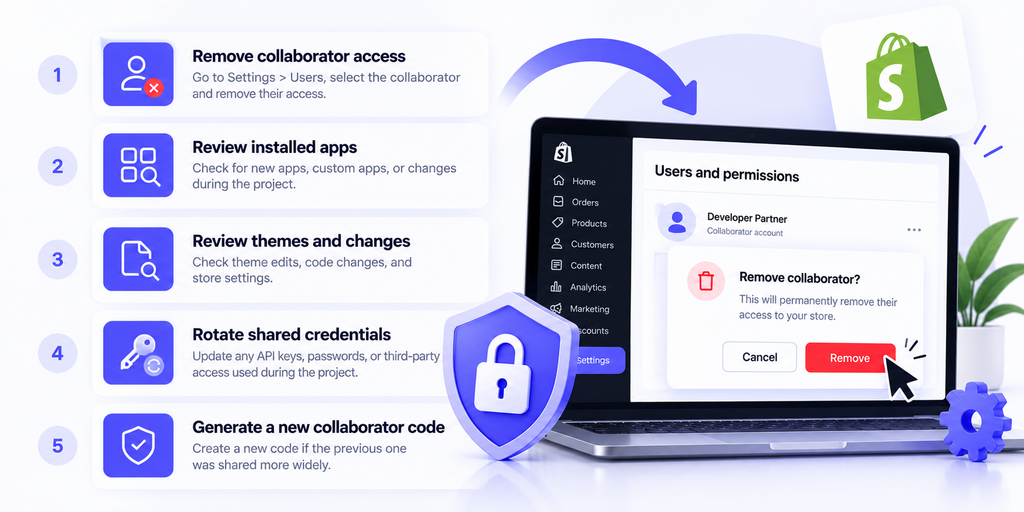
Go to Settings > Users, open the collaborator’s account, and choose Remove collaborator account. Shopify says removal is permanent. If you work with the same Partner again later, they must submit a new collaborator request.
Also review anything the developer added or changed. Check installed apps, custom apps, themes, user roles, store settings, and any third-party credentials used during the project.
Shopify automatically expires collaborator access if the collaborator has not logged in to the store for 90 days. Do not use that as your normal offboarding process. If the project is finished today, remove access today.
If the collaborator code was shared beyond the current engagement, generate a new code so the old one can no longer be used to send new requests.
Common Mistakes When Giving a Shopify Developer Access
The biggest mistake is sharing the owner login because it feels faster. It removes the permission boundaries Shopify provides and creates unnecessary risk around sensitive settings.
Another mistake is approving every requested permission without reading the list. A broad role is not automatically necessary. A completed project should also trigger an immediate access review and removal of permissions that are no longer needed.
Finally, do not confuse a four-digit collaborator code with approval. Possessing the code lets a Partner request access. You still control whether the request is accepted and which role they receive.
FAQs
Can I give a Shopify developer access without sharing my password?
Yes. Use Shopify collaborator access. The developer requests access through their Partner account, and you approve the role and permissions from your Shopify admin.
Where do I find my Shopify collaborator code?
Go to Settings > Users > Security in Shopify admin. In the Collaborators section, copy the four-digit code and share it only with the Partner you expect to work with.
Does a Shopify collaborator count as a staff user?
No. Shopify collaborator accounts do not count toward the store’s user limit.
Can I change a developer’s permissions after approving access?
Yes. Shopify lets eligible users change a collaborator’s assigned role after access has been granted.
Does Shopify collaborator access expire automatically?
Yes. Shopify says collaborator access expires after 90 days without a login. For completed projects, remove access immediately instead of waiting for automatic expiry.
Give Access Without Giving Away Control
Give access that is controlled, task-specific, and reversible. Use collaborator access when it fits, keep sensitive permissions restricted, and remove access when the work ends.
For ongoing Shopify support and the right person for the work, NextHire can help you hire Shopify developers for theme customization, troubleshooting, app work, and ongoing store development.